.jpg)
Account CRM
Depending if you have an enterprise or reseller account you will get a different result when you click on the account menu.
The Account CRM menu provides users with access to account management features, and its functionality varies depending on the type of account you have—enterprise or reseller.
Enterprise account
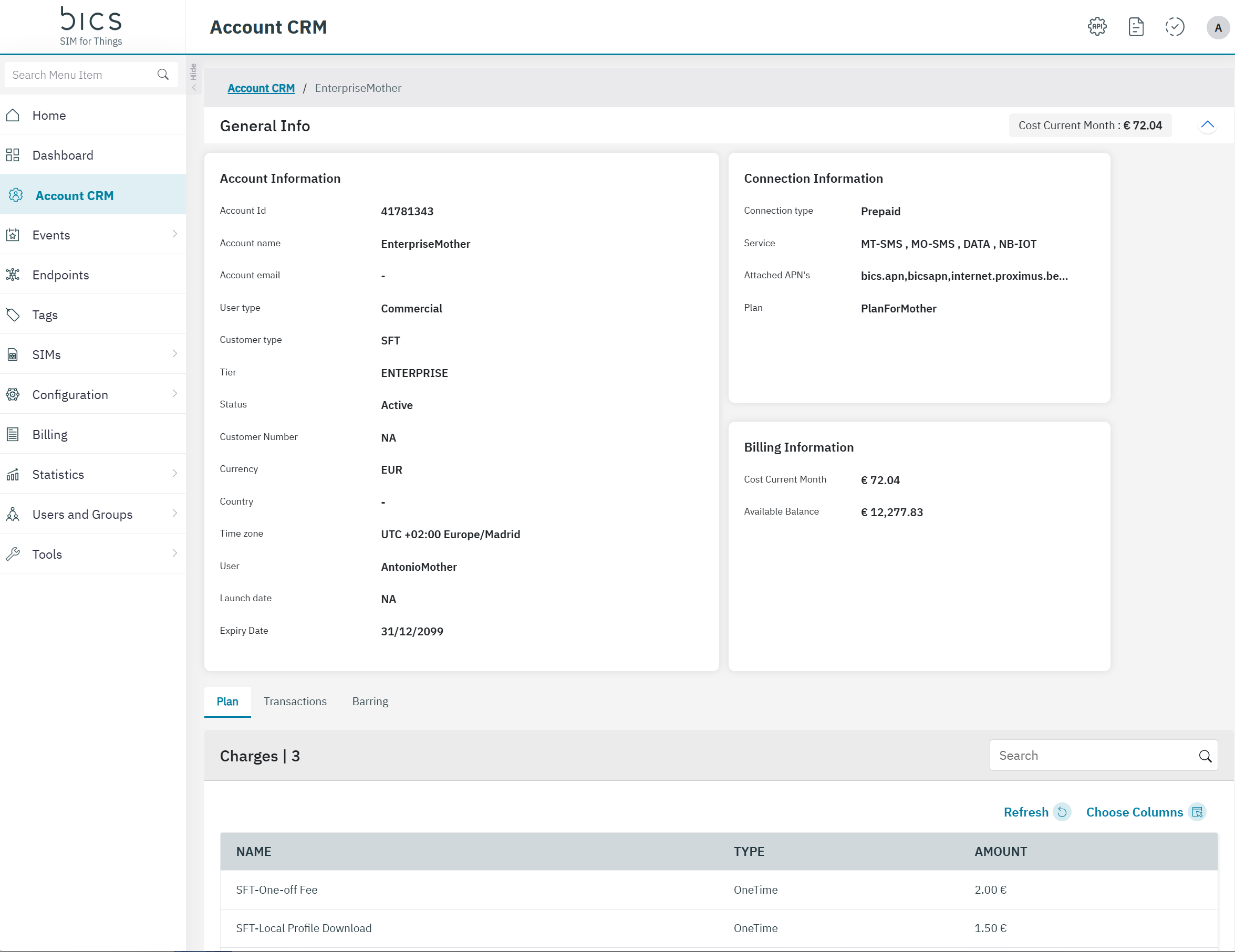
When you have an enterprise account, clicking on the Account CRM menu will display information and management options relevant to your organization’s account. Typically, this includes:
-
Overview of your enterprise account: View key details such as account name, status, and contact information.
-
Account management tools: Access to features for updating account details, managing billing information, and viewing usage statistics.
-
User management: Add, remove, or modify users associated with your enterprise account.
-
Support access: Direct links to support resources or the ability to contact support for enterprise-specific issues.
Reseller account
If you have a reseller account, the Account CRM menu provides a broader view, allowing you to manage not only your own account but also the accounts of your customers. When you click on the menu:
-
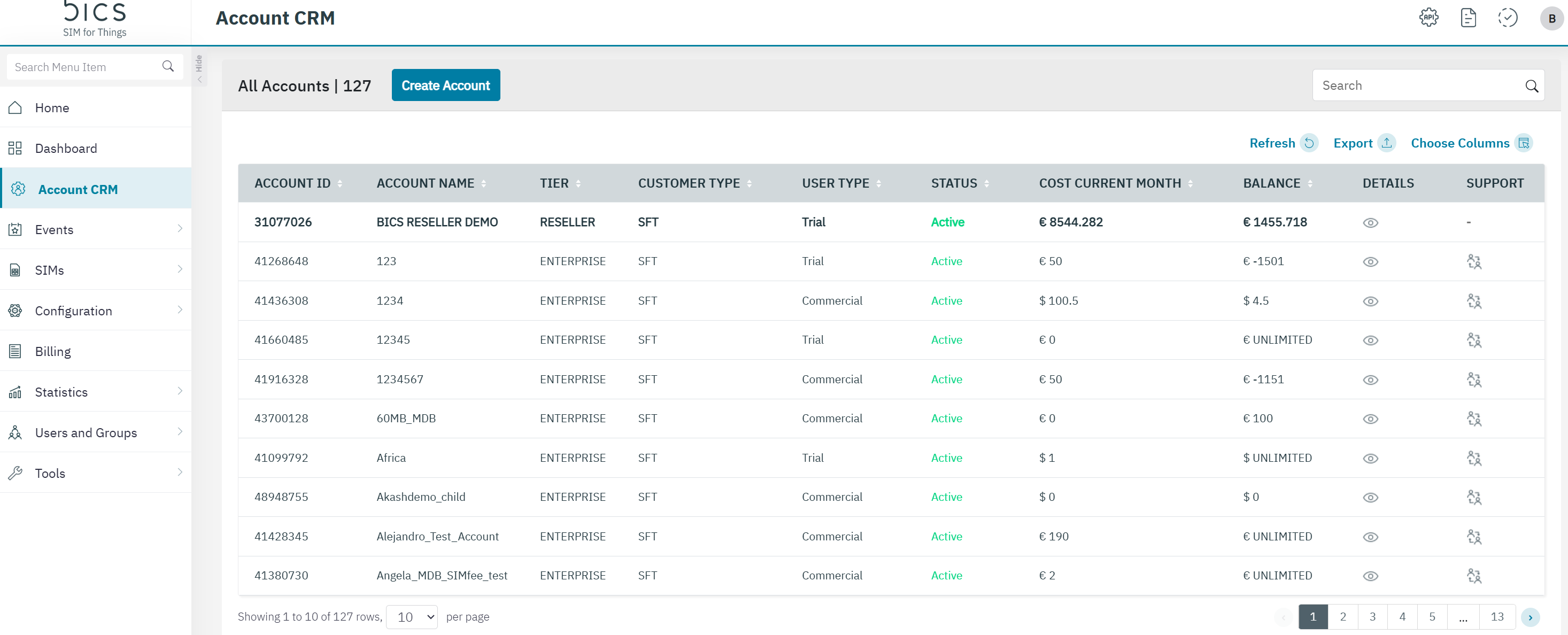
List of all accounts under your reseller profile: You will see a table or list displaying all customer accounts managed by your reseller account.
-
Your own account is included in the list: Your reseller account will also appear in this list for easy access.
-
Support icon: For each account, there is a Support icon. For your own account, this icon will display as a dash (“-”), indicating that support actions are not applicable to your own account from this view.
-
Account actions: For customer accounts, you may have options to view details, manage settings, or initiate support requests on their behalf.
All the accounts under Reseller are displayed.
In the list you will also see your own account. The Support icon will be a - where it is your account.