.jpg)
Diagnosis
The Diagnosis window is used to check if all the services of the endpoint are working correctly. The Enterprise can view the following details about the endpoint
-
Configuration Check
-
SIM Properties
-
Real-Time Status Check
-
On the Endpoint screen, click Diagnosis to view the diagnosis details for the endpoint.
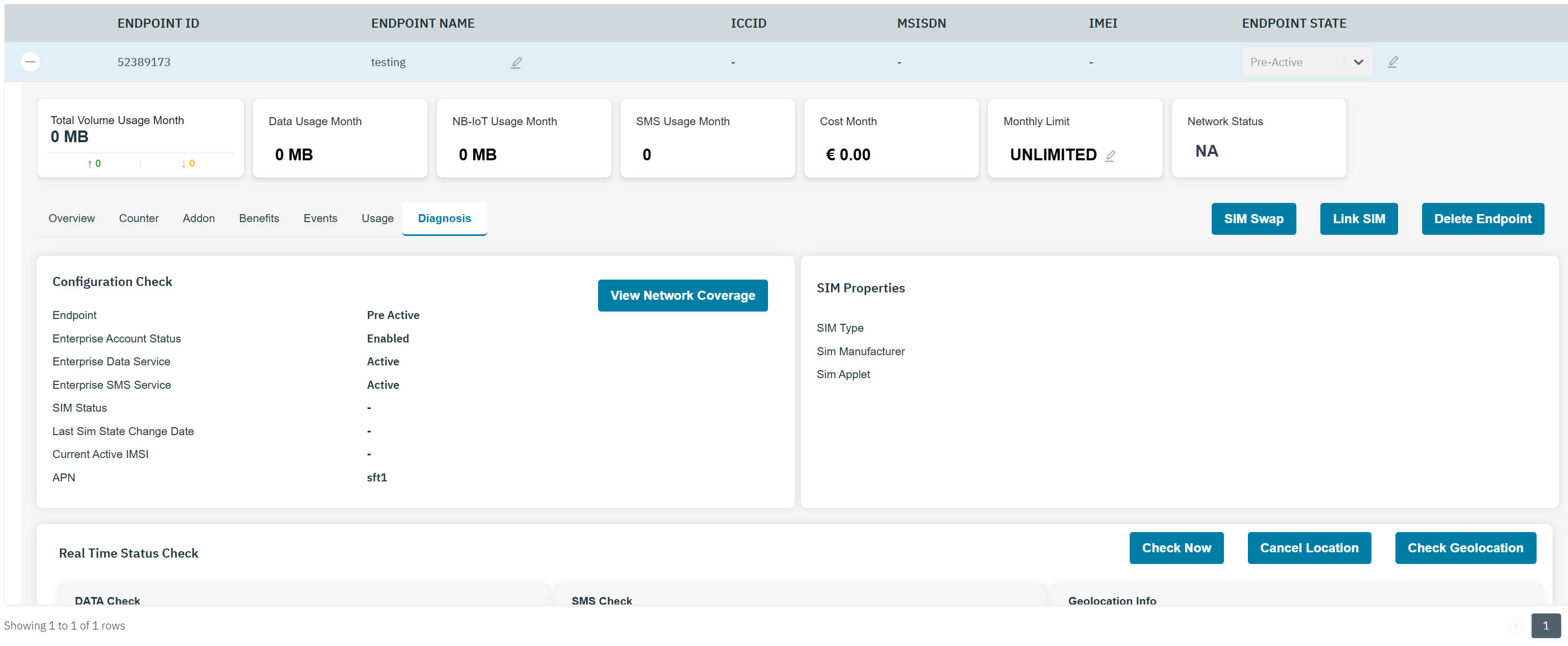
Configuration Check
-
The following configuration check details are displayed on the screen.
|
Field |
Description |
|---|---|
|
Endpoint |
Indicates the state of Endpoint.
|
|
Endpoint Account Status |
Indicates the account status of the endpoint. For example, enabled or disabled |
|
Enterprise Data Service |
Indicates if the data service is enabled or disabled on the endpoint. |
|
Enterprise SMS service |
Indicates if the SMS service is enabled or disabled on the endpoint. |
|
SIM Status |
Indicates the SIM status of the endpoint. For example active or inactive |
|
Last Sim State Change Date |
|
|
Currently Active IMSI |
Indicates the currently active IMSI of the endpoint.
|
|
APN |
Indicates the APN type currently used by the endpoint |
|
Data Counter |
Indicates the threshold limit of the Data counter.
|
SIM Properties
|
SIM Type |
SIM type indicates the physical properties of the SIM. For example, UICC, Micro, Mini, and Nano. |
|
SIM Manufacturer |
Indicates the manufacturer name of the SIM card |
|
SIM Applet |
SIM Applets are Java-based applications available on a SIM card |
Real-Time Status Check
|
Data check |
Indicates if Data session is active or not.
|
|
SMS check |
Indicates if SMS is enabled or disabled for the endpoint
|
|
Geolocation Info |
Click Check Geolocation to fetch the real-time location of the endpoint.
|
View Network Coverage
-
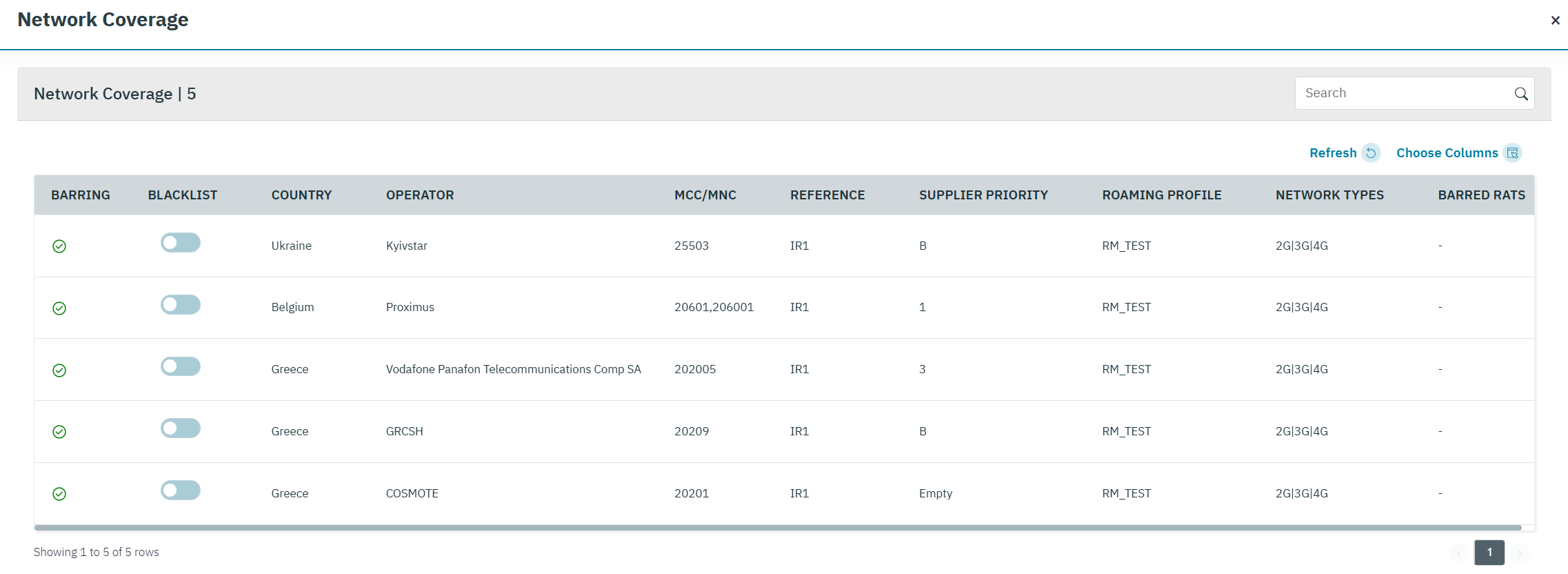
On the Diagnosis screen, click View Network Coverage to view the network details of the endpoint.
-
The following Network coverage details are displayed on the screen.
|
Field |
Description |
|---|---|
|
Barring |
Indicates the current status of the Operator. |
|
Blacklist |
Networks can be added or removed from the blacklist for this endpoint only. |
|
Country |
Indicates the origin country of the operator. For example, Belgium. |
|
Operator |
Indicates the name of the Operator. For example, Belgium Proximus. |
|
MCC/MNC |
Indicates the unique Mobile Country Code/Mobile Network Code of the operator. |
|
Reference |
Indicates the name of the global supplier list |
|
Supplier priority |
|
|
Roaming Profile |
Indicates the Name of the Roaming profile |
|
Network Types |
Indicates the Network types supported by the Network of the operator. |
|
Barred RATs |
Indicates the status of the RATs of the operator |
Blacklisting operator for the endpoint:
-
The objective of the blacklisting operator is to give the user the means to blacklist one or multiple networks for endpoints only without modifying the roaming profile.
-
It will be possible to change the blacklist for an endpoint irrespective of its state.
-
To blacklist or to remove from blacklist the network click on the toggle button. Once the toggle is clicked shows an alert message.
-
On click “YES” network will be blacklisted and receives a confirmation message
-
If the endpoint has multiple roaming profiles and overlapping networks linked to it, and if the network is blacklisted then automatically appears as blacklisted for all roaming Profiles.
-
As soon as the user will click on one of the networks to change the blacklist status, the platform will first check that not more than 25 unique networks have been blacklisted. If the number has been exceeded, a failure message will appear, refer to the following screen.
-
A network blacklisted for multiple roaming profiles of the same endpoint counts as 1 only (for max 25 validation).
-
If the operator is barred from roaming profile, the network will appear with the blacklist toggle button set to “Off” and the button will be greyed out.
Check Now
-
Click Check Now to fetch the real-time data of the endpoint.
-
It queries the current network status of the endpoint, including registration, barring, and data session state.
-
It retrieves the latest location and connectivity information from the core network.
-
It updates the UI with the most recent data, bypassing the default refresh interval.
-
Cancel Location
The "Cancel Location" button on an endpoint triggers a network-level reattachment process.
-
When you click Cancel Location:
-
The Home Subscriber Server (HSS) sends a Cancel Location Request to the Visited Public Land Mobile Network (VPLMN).
-
This forces the endpoint to detach and reattach to the network.
-
The data session restarts, typically within 20 seconds.
-
Check Geolocation
On the Diagnosis screen click Check Geolocation button to view the current cell id location of the endpoint.
We only store the last cell id location of the endpoint after the Check Geolocation is requested.
Integration with the Google maps API.
-
Provides the longitude and latitude for the Cell ID where the endpoint is registered on.
-
Shows the Cell location on a Google maps view (the location accuracy depends if the Cell is in a rural or urban area).
The following Geolocation details are displayed on the screen.
|
Field |
Description |
|---|---|
|
MCC |
Indicates the mobile country code of that endpoint. For example 404 |
|
MNC |
Indicates the mobile network code of the endpoint. For example 49 |
|
Cell ID RAT Type |
Indicates the Radio access type (RAT) of the endpoint For Example 2G/3G or 4G |
|
LAC / TAC |
Indicates the
For example A476 |
|
Cell ID |
Indicates the CellID based on the RAT type for the endpoint. For example DDDCF2A |