.jpg)
Enterprise view
Via the Account CRM menu, the Enterprise can view the Account, connection and billing information from the account and also the current plan details, transaction details, and services barred.
View Account details
-
Click on the Account CRM menu.
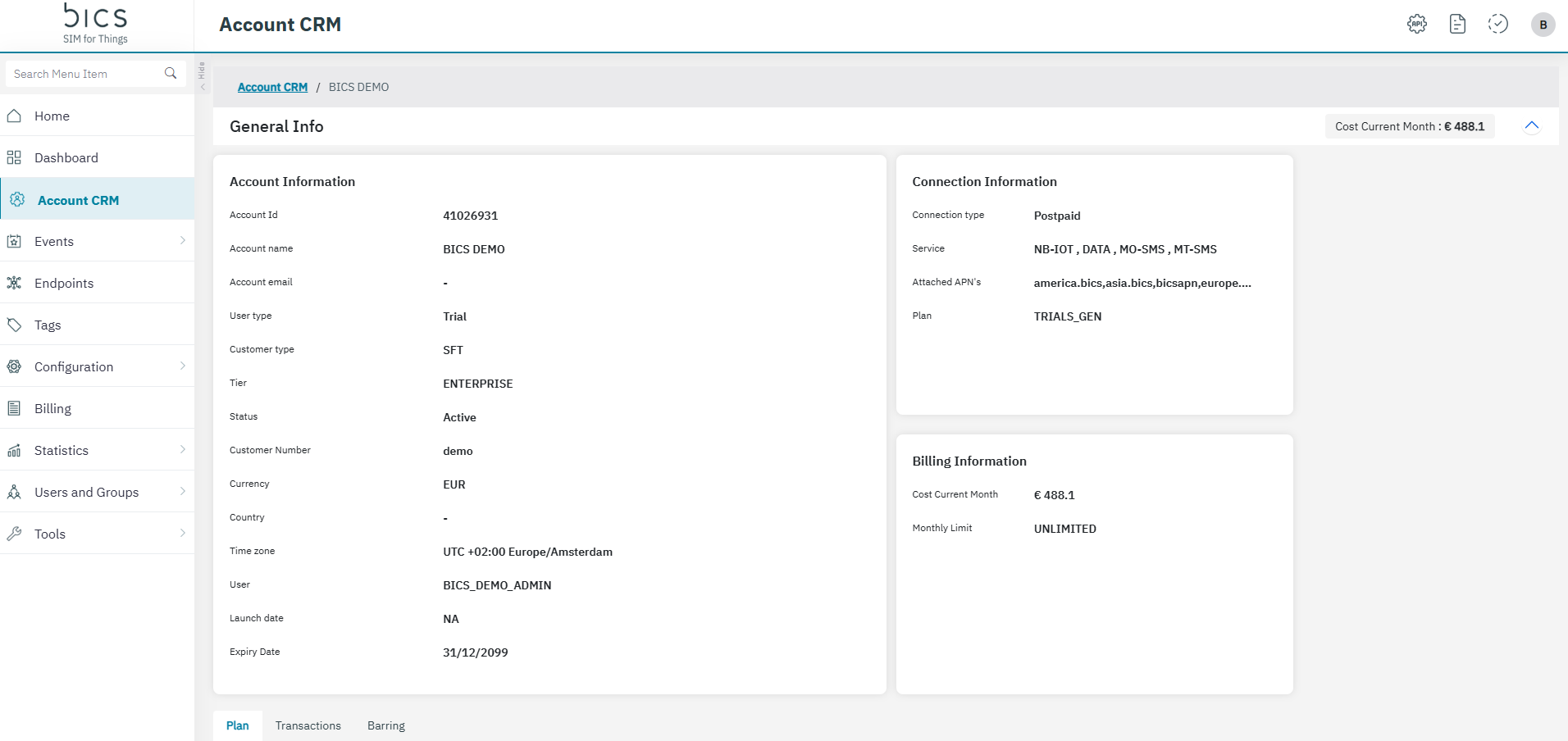
Account details cannot be edited by the Enterprise. Account details can be edited only by parent account.
The OEM enabled enterprise account will see the “Test” and “Inventory” info.
The following account details are displayed on the screen.
|
Field |
Description |
|---|---|
|
Account Information |
|
|
Account ID |
Indicates the unique reference ID of the account |
|
Account Name |
Indicates the name of the enterprise |
|
Account Email |
Indicates the Email of that account. |
|
User Type |
Indicates the enterprise type. For example Trial or Commercial |
|
Customer Type |
Indicates the type of account. |
|
Tier |
Indicated if its an Enterprise or Reseller account |
|
Status |
Indicates the status of the account. For example, Active or Inactive. |
|
Customer Number |
Indicates the unique number given to the enterprise |
|
Currency |
Indicates the currency of the enterprise |
|
Country |
Indicates the Country of the enterprise |
|
Time Zone |
Indicates the time zone of the enterprise |
|
User |
Indicates the default username of the enterprise |
|
Launch Date |
Indicates the date on which the account will move to Commercial status.
|
|
Expiry Date |
Indicates the expiry date of the account. After the expiry date is reached, the account is deactivated.
|
|
Connection Information |
|
|
Connection Type |
Indicates the type of connection. For example Postpaid or Prepaid |
|
Service |
Indicates the type of service available under the current plan for the account. For example Data or SMS |
|
Attached APN |
Indicates the name of the APN group attached to the enterprise |
|
Test plan |
Indicates the current test plan of the Enterprise
|
|
Inventory plan |
Indicates the current inventory plan of the Enterprise
|
|
Plan |
Indicates the current base plan of the Enterprise |
|
Billing Information |
|
|
OEM Model |
The OEM enabled enterprise account will see the “Test” and “Inventory” plan info. |
|
Cost Current Month |
Indicates the total charges for the current month based on the usage and other charges |
|
Monthly limit |
Indicates the monthly credit limit of the enterprise.
|
|
Available balance |
Indicates the balance available for the enterprise.
|
|
Dynamic Benefit only |
Indicates if the use of Dynamic Benefits is mandatory or optional for the enterprise.
|
|
Dynamic Benefit Name |
By default, this field is not displayed. This field is displayed when you enable "Dynamic Benefit only" for the enterprise.
|
PLAN
On the Account details screen, by default, the Plan tab is displayed.
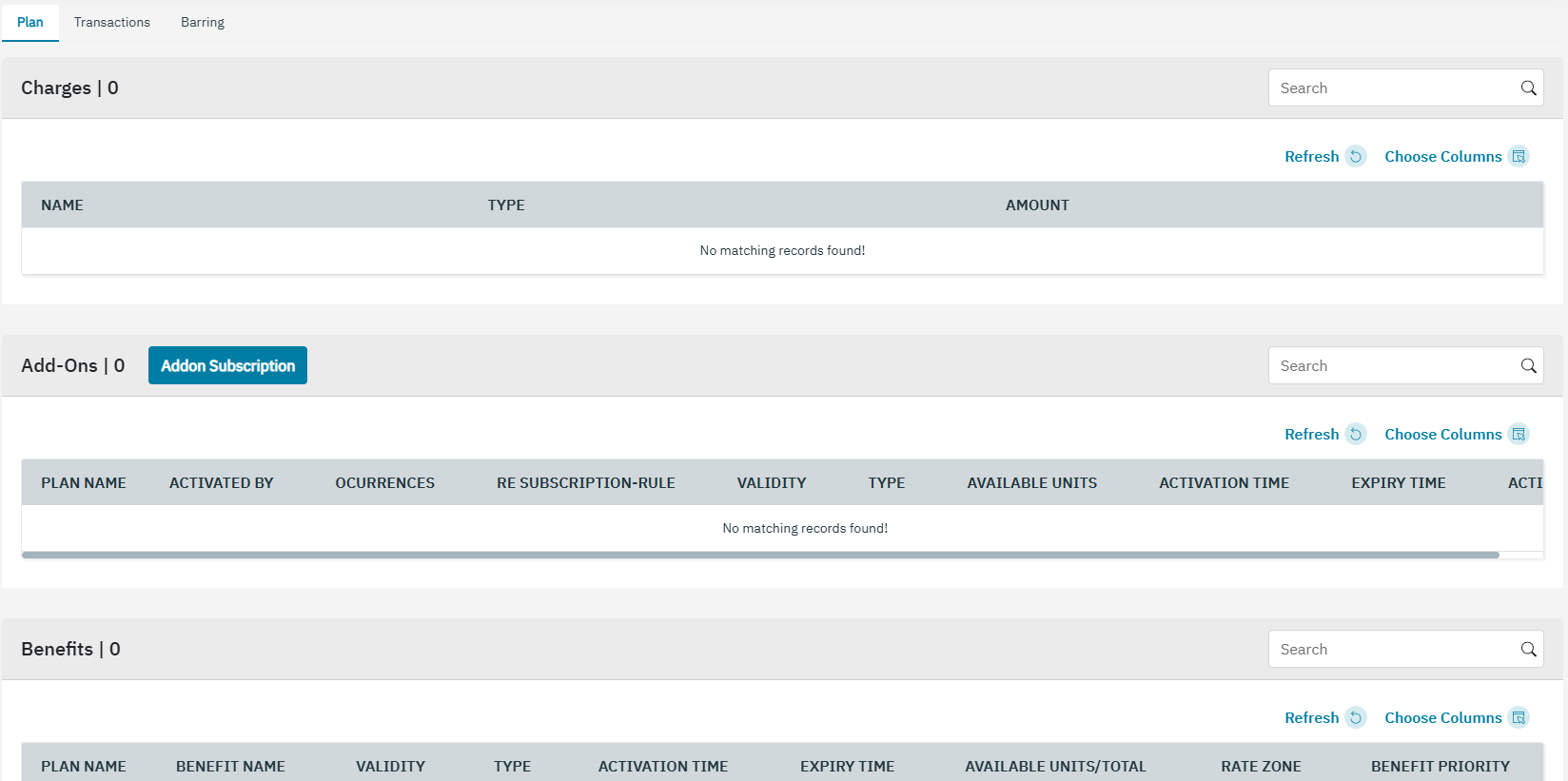
The following Plan details are displayed on the screen.
|
Field |
Description |
|---|---|
|
Charges |
|
|
Name |
Indicates the charges applicable for the enterprise |
|
Type |
Indicates the type of charge. For example Recurring or One time |
|
Amount |
Indicates the amount for each charge |
|
Add-Ons |
|
|
Plan Name |
Indicates the current Addon plan of the enterprise |
|
Activated By |
|
|
Occurrences |
|
|
Re Subscription Rule |
|
|
Validity |
|
|
Type |
|
|
Available units |
|
|
Activation Time |
Indicates the activation time and date of the Add-on plan |
|
Expiry Time |
Indicates the expiry time and date of the Add-on plan |
|
Action |
Indicates the action to be taken on the Addon. For example, Activate or Deactivate.
|
|
Benefits |
|
|
Plan Name |
Indicates the current base plan name of the enterprise |
|
Benefit Name |
Indicates the name of the benefit available for the current plan. |
|
Validity |
Indicates the validity period of the Benefit. For example, 1 Week or 1 month. |
|
Type |
Indicates the type of Benefit. For example Recurring or One time |
|
Activation Time |
Indicates the Activation time of the Benefit |
|
Expiry/Renewal Time |
Indicates the Expiry or next Renewal time of the Benefit |
|
Available Units/Total |
Indicates the number of units left and the total units allocated |
|
Ratezone |
Indicates the Ratezone to which the benefit is applicable |
|
Benefit Priority |
Indicates the Pooled Benefits priority |
|
Counters |
|
|
Counter |
Indicates the name of the counter |
|
Frequency |
|
|
Frequency Factor |
|
|
Action |
|
|
Reset date |
|
|
Available units/Total |
|
|
Threshold unit |
Indicates the threshold limit of the Counter. After the threshold limit is reached, the configured action is triggered |
|
Dynamic Benefits |
|
|
Name |
Provisioned Name |
|
Category |
In this story “Pooled” or Non-pooled” |
|
SIM & Benefit Fee |
Value with currency symbol |
|
SIM Activation Fee |
Value with currency symbol |
|
Activated By |
Selected Activated By |
|
Mode |
Selected Mode |
|
Validity |
Provisioned Factor + selected Validity |
|
MDB Priority |
Indicates the Non-pooled MDB priority |
|
No. of Times Active |
Activated MDB count |
|
Benefit |
Selected Benefit, one subline per benefit included in the MDB(DATA or NB-IOT) |
|
Ratezone |
Selected Ratezone with a link, one subline per benefit included in the MDB |
|
Benefit Priority |
Indicates the Pooled and Non-pooled Benefits priority |
|
Value |
Provisioned Value with “MB”/”Count”, one subline per benefit included in the MDB |
|
Overage Tariff |
Provisioned Overage Tariff with currency symbol + ”/MB” or “/Count” dependent on the selected Benefit, one subline per benefit included in the MDB |
Dynamic benefit table added filter box to “Select Category” above this table with the option to select only “Pooled” or “Non-Pooled”.

TRANSACTIONS
-
To view the transaction details, click the Transactions tab. Refer to the following screen.
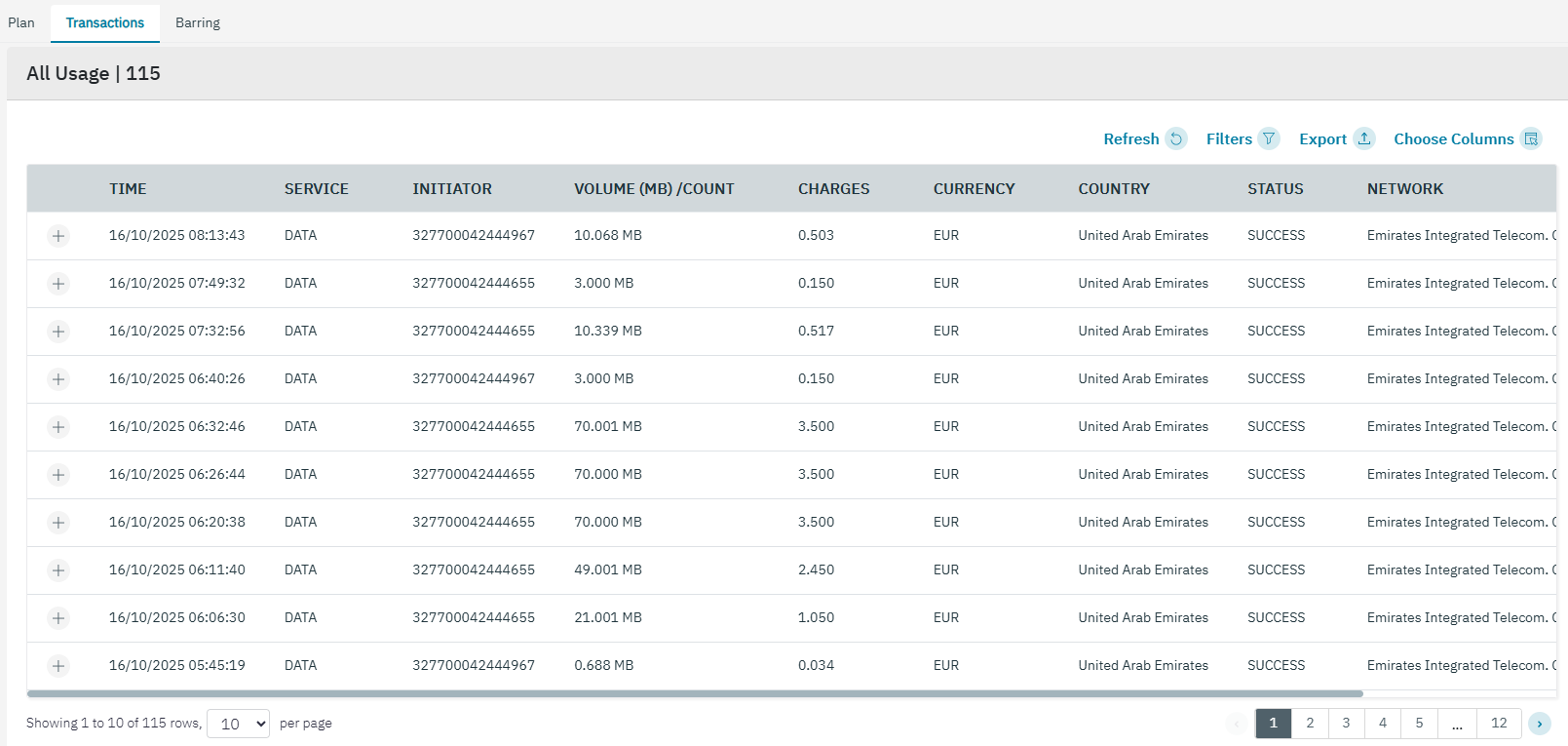
The following Transaction details are displayed on the screen.
|
Field |
Description |
|---|---|
|
Time |
Indicates the date and time of the transaction |
|
Service |
Indicates the type of service. For example Data or SMS or NB-IOT.
|
|
Initiator |
Indicates the MSISDN of the endpoint from where the transaction is initiated. |
|
Volume (MB)/Count |
|
|
Charges |
Indicates the charges for the transaction.The value shall be displayed with 3 decimals. |
|
Currency |
Indicates the currency of the enterprise. |
|
Status |
Indicates the status of the transaction. For example, Success or Failure |
|
Network |
Indicates the network used for the transaction. For example: Proximus. |
|
Supplier |
Indicated the supplier of the network used. |
-
On the Transactions screen, click on the “+” icon to view the quick description of the transaction.
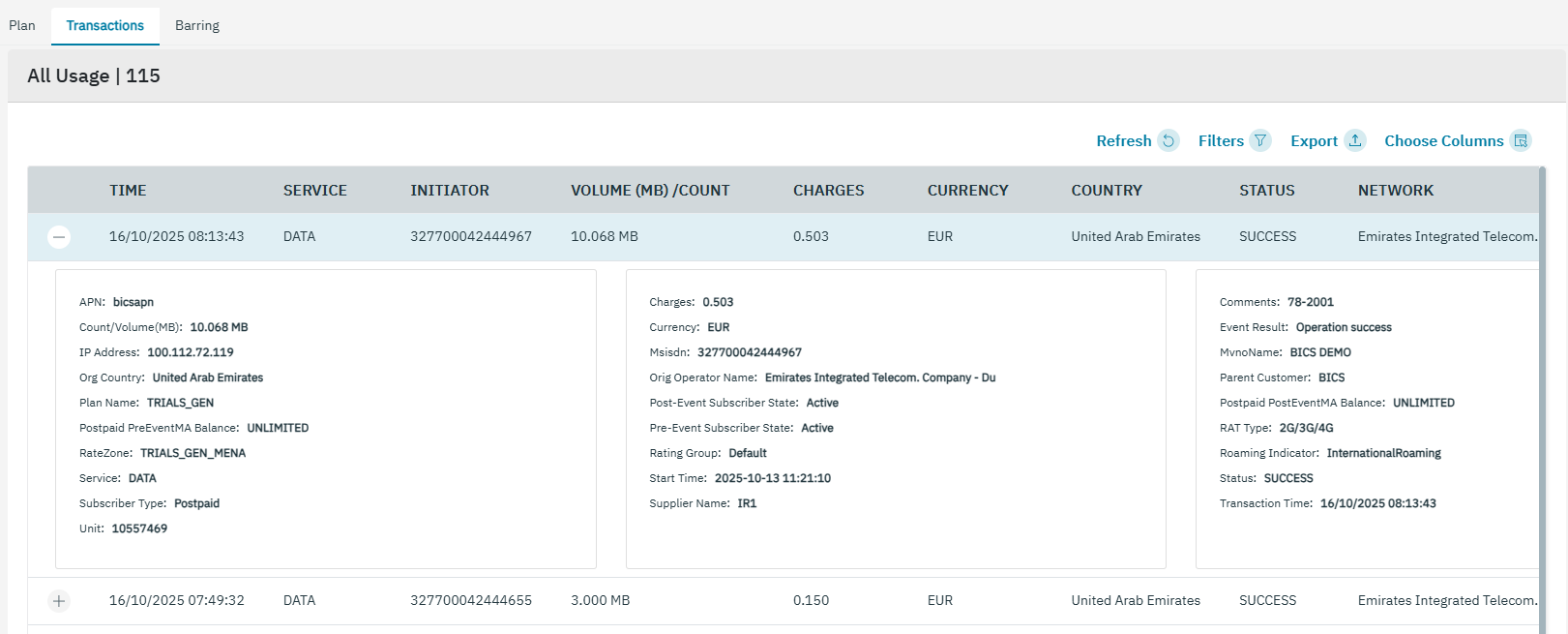
The following transaction details are displayed on the screen.
|
Field |
Description |
|---|---|
|
APN |
The APN used by the endpoint |
|
Count/Volume(MB) |
If the service type is data, the volume of data consumed in Megabytes (MB) during the transaction is displayed.The value shall be displayed with 3 decimals.
|
|
IP Address |
The IP address used by the endpoint |
|
Org Country |
Indicates the originating country of the transaction |
|
Plan Name |
Indicates the current base plan of the endpoint |
|
Postpaid PreEventMA Balance |
Indicates the account balance after transaction |
|
Rating Group |
Indicates the Rating group of the endpoint |
|
Start Time |
|
|
Supplier Name |
|
|
Charges |
Indicates the charges for the transaction.The value shall be displayed with 3 decimals. |
|
Currency |
Indicates the currency of the enterprise |
|
Msisdn |
Indicates the MSISDN of the endpoint.
|
|
Orig Operator Name |
Indicates the Originating operator name of the transaction |
|
Post-Event Subscriber State |
|
|
Pre-Event Subscriber State |
|
|
Roaming Indicator |
|
|
Status |
Indicates the status of the transaction. For example, Success or Failure. |
|
Transaction Time |
|
|
Comments |
|
|
Event Result |
Indicates the result of the transaction. |
|
MvnoName |
|
|
Parent Customer |
Indicates the parent customer name of the endpoint |
|
Postpaid PostEventMA Balance |
|
|
RateZone |
Indicates the Ratezone under which the transaction occurred |
|
RAT type |
Indicates the network type used for transaction. For example, 2G, 3G, 4G, or NBIOT |
|
Service |
Indicates the service type. For example, Data or SMS |
|
Subscriber Type |
Prepaid or postpaid |
|
Unit |
|
BARRING
-
To view the functions barred on the account, click the Barring tab.

Depending on the Service profile selected, service available for the endpoint varies. In this case, 2G/3G/4G/NBIOT/SMS_MO/SMS_MT services are available for this endpoint.
Its not possible to change the barring here. Its view only.
The following Barring details are displayed on the screen.
|
Field |
Description |
|---|---|
|
NB-IOT |
Indicates if NB_IOT service is barred for the account |
|
SMS_MT |
Indicates if SMS_MT service is barred for the account |
|
SMS_MO |
Indicates if SMS_MO service is barred for the account |
|
Data |
Indicates if Data service is barred for the account |