.jpg)
Creating User
-
On the user management screen, click Create User button to create a new user.

-
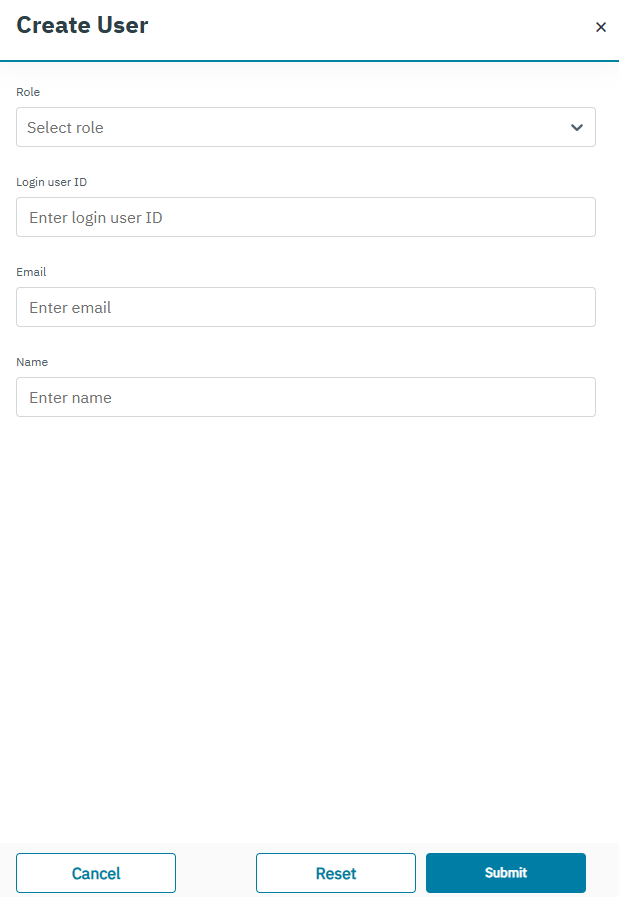
After clicking the button, the following screen is displayed.
-
Enter or select the following information in the corresponding fields.
|
Field |
Description |
|---|---|
|
Role |
Select the role to be assigned for the new user. |
|
Login User ID |
Enter a unique login ID for the user. |
|
Email ID |
Enter the email ID of the user. |
|
Name |
Enter the name of the new user.
|
-
Click Submit. A confirmation message is displayed, indicating that the user is created for account successfully.
-
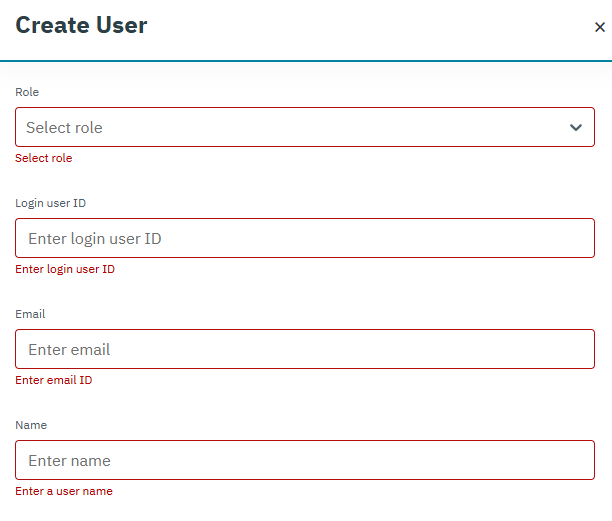
If you click Submit, without entering the user details, the following notification is displayed below the missing fields on the Create User screen.
-
After a user is created, a mail is sent to the registered email ID of the user with a link to set the password. Refer to the following screen.
-
After clicking the link, the following screen is displayed.
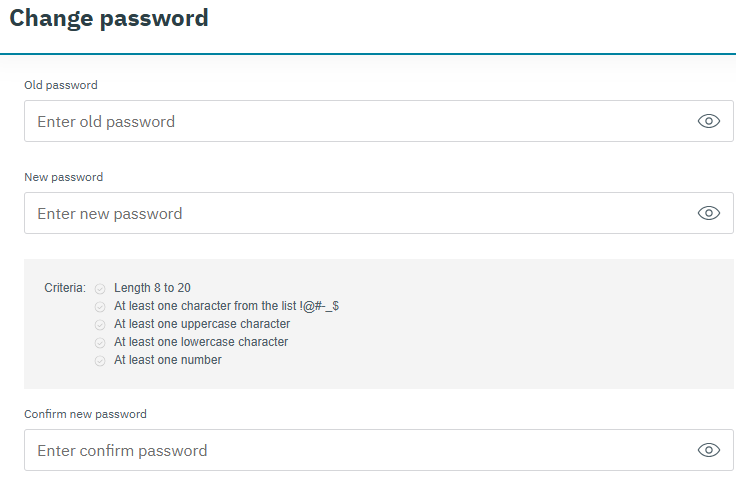
The new password should satisfy the following criteria,
-
Password Length should be between 8 to 20 characters
-
Password should contain at least one of the following characters "!@#_.$"
-
Password should contain at least one upper case character
-
Password should contain at least one lower case character
-
Password should contain at least one numerical character
Note: A sample password is provided as reference "hac69#BB".
-
Enter New Password in the corresponding field.
-
Re-enter the New Password in Confirm New Password field.
-
Click Change Password to save the new password. A confirmation message is displayed, indicating that the password is changed successfully.
-
After the successful change of account password, the user is logged out of the system. You can now login with the new password.