.jpg)
Reset Password
1. On the User management screen, click the reset password icon to reset the password for the user.

-
After clicking the button, the message “Are you sure you want to continue?” appears. Click Submit. A message is displayed, indicating you will receive a password reset link via mail.
-
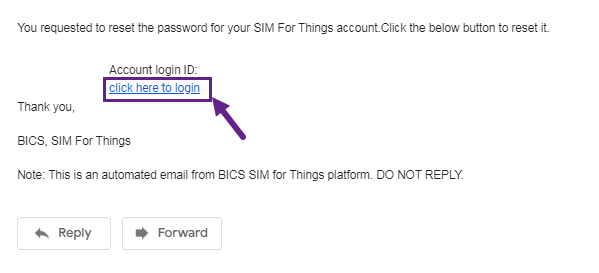
An email is sent to the registered email of the user with a link to set the password. Refer to the following screen.
-
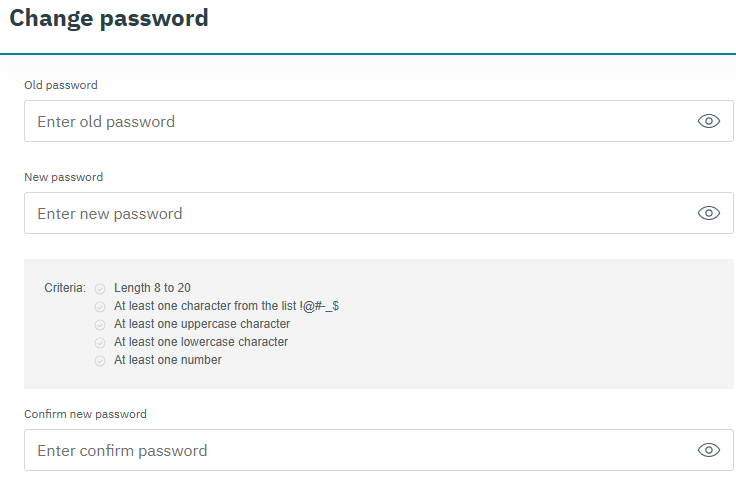
After clicking the link, the following screen is displayed.
-
Enter Old Password in the corresponding field.
-
Enter New Password in the corresponding field.
-
Re-enter the New Password in Confirm New Password field.
-
Click Submit to save the new password.
The new password should satisfy the following criteria,
-
Password Length should be between 8 to 20 characters
-
Password should contain at least one of the following characters "!@#_.$".
-
Password should contain at least one upper case character
-
Password should contain at least one lower case character
-
Password should contain at least one numerical character
Note: A sample password is provided as reference "hac69#BB".
-
-
A confirmation message “are you sure you want to continue” is displayed.
-
Click yes to update the password.
-
Click no to discard the password change.
-