.jpg)
Modify Available Balance
For postpaid endpoints only!
-
On the Endpoint screen, click on the pencil icon to modify the available balance.
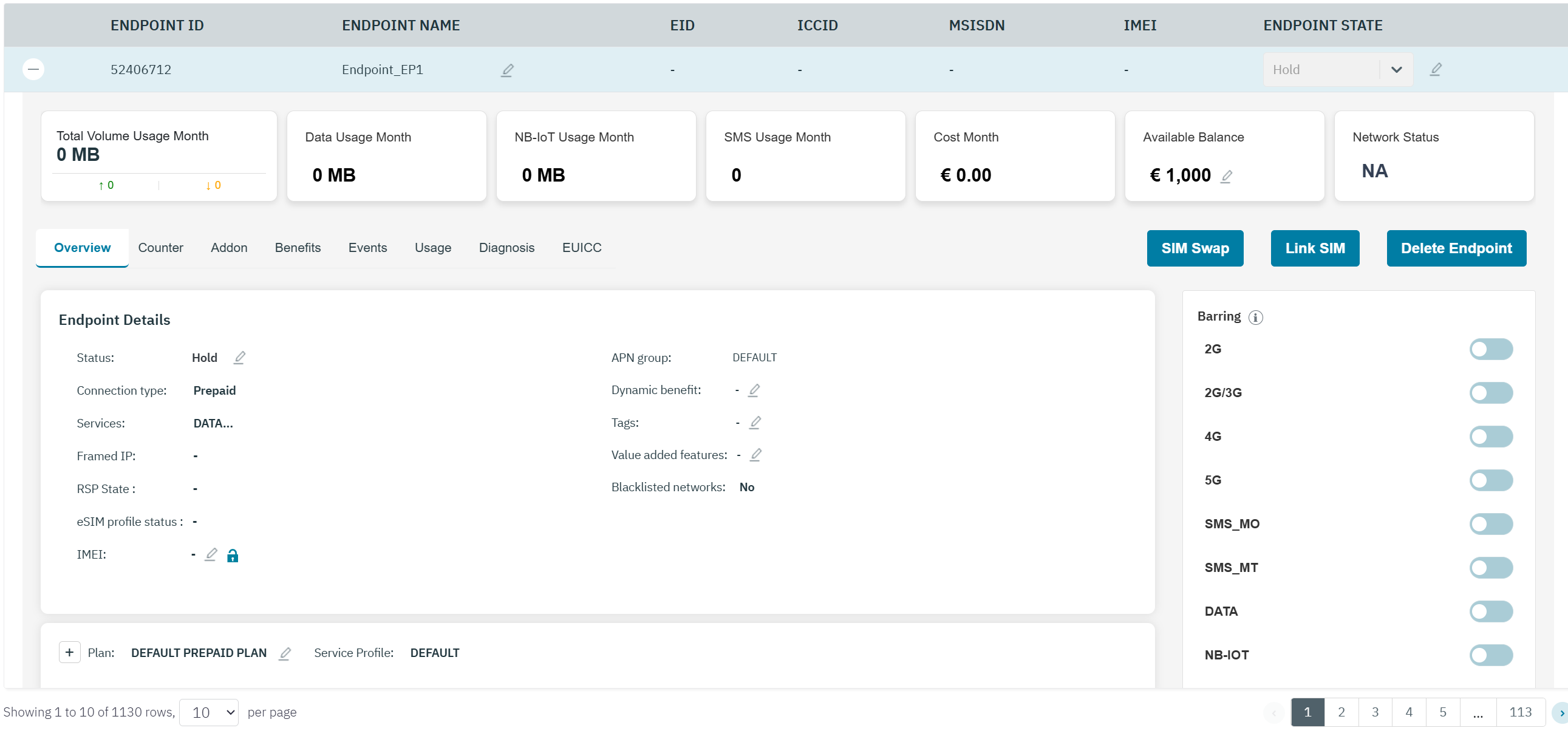
-
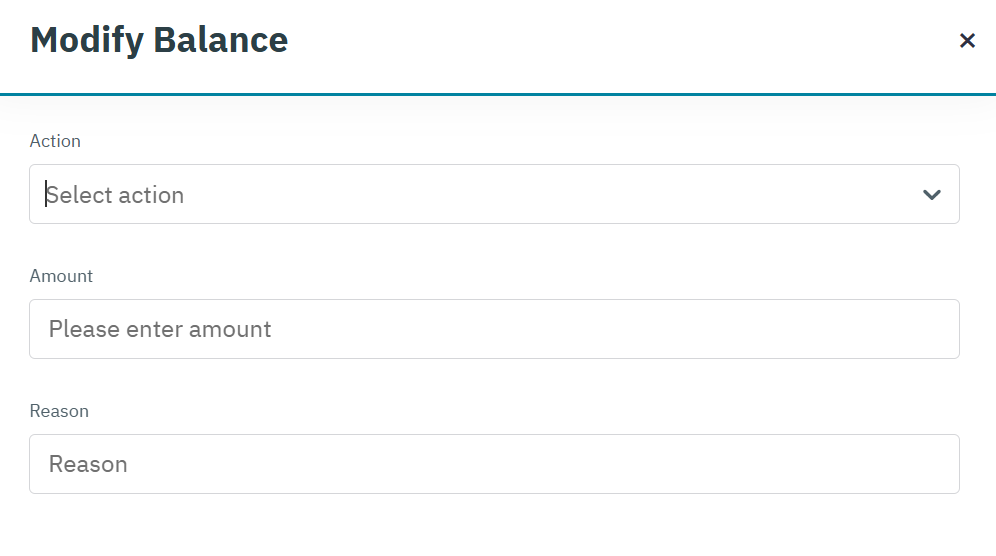
After clicking the button, the following screen is displayed.
-
Enter or select the following information in the corresponding fields.
|
Field |
Description |
|---|---|
|
Action |
Select the action type in the drop-down list. For example, Topup, Deduct and Reset
|
|
Amount |
Enter the amount |
|
Reason |
Enter the reason for modifying the balance |
-
After clicking Submit, a confirmation message is displayed indicating endpoint/customer detail is updated successfully.
Modify Monthly Limit
For prepaid endpoints only!
-
On the Endpoint screen, click on the pencil icon to modify the monthly limit.
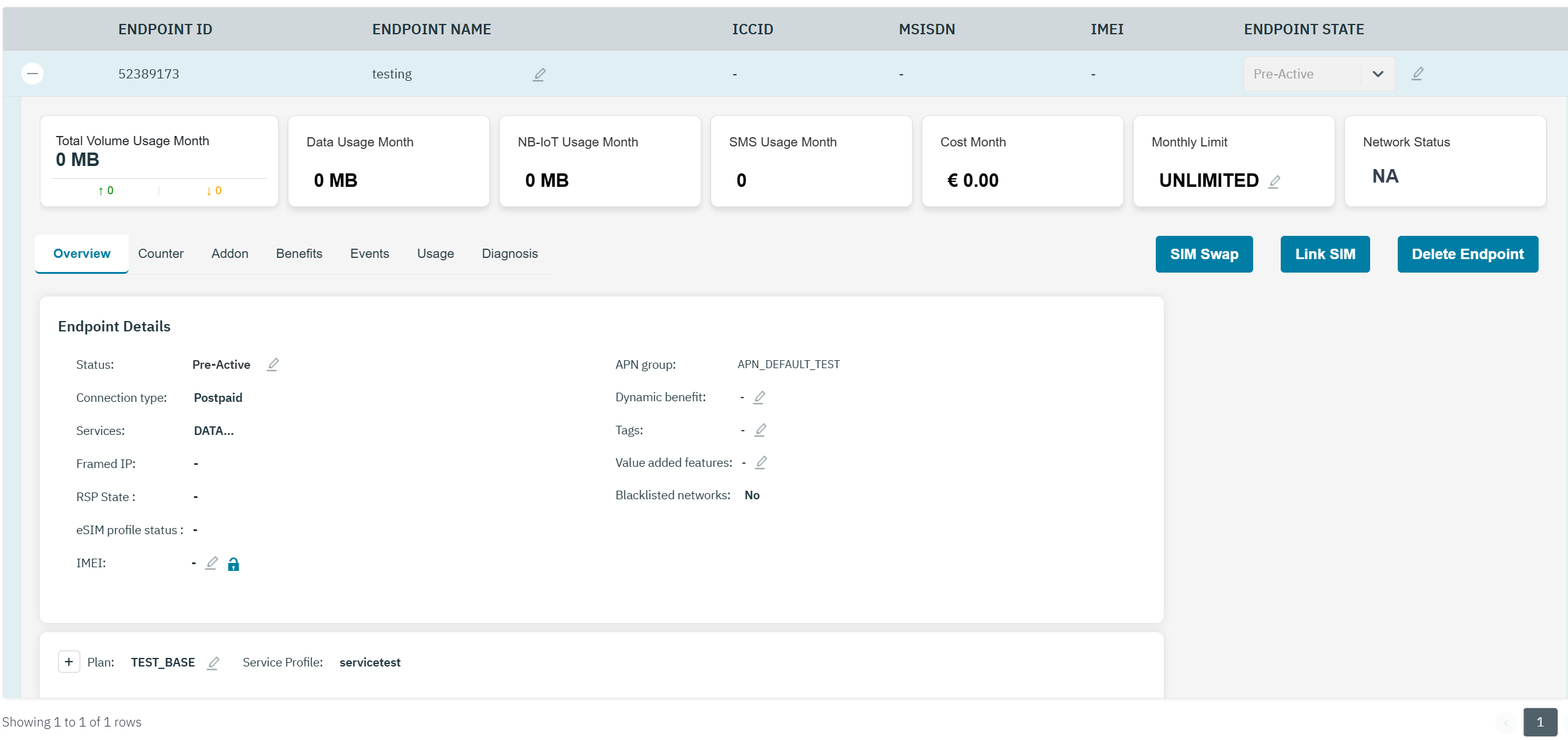
-
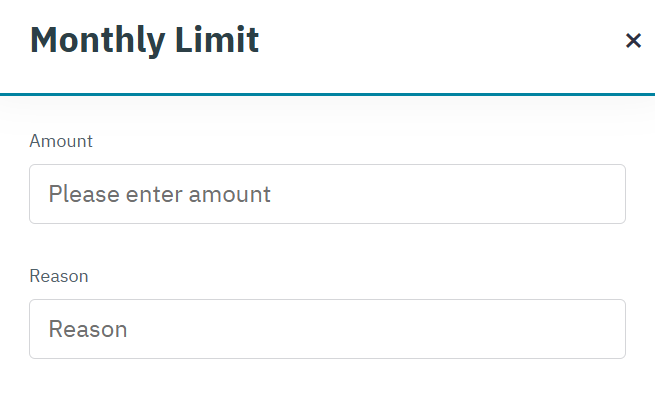
After clicking the button, the following screen is displayed.
-
Enter or select the following information in the corresponding fields.
|
Field |
Description |
|---|---|
|
Amount |
Enter the new monthly limit amount |
|
Reason |
Enter the reason for modifying the monthly limit |
-
After clicking Submit, a confirmation message is displayed indicating endpoint/customer detail is updated successfully.